How to Set Up an Ergonomic Home Office (Without Spending a Fortune)
The actual ergonomic adjustments that reduce back and neck pain. Most of them cost nothing, and a few targeted upgrades do the rest.
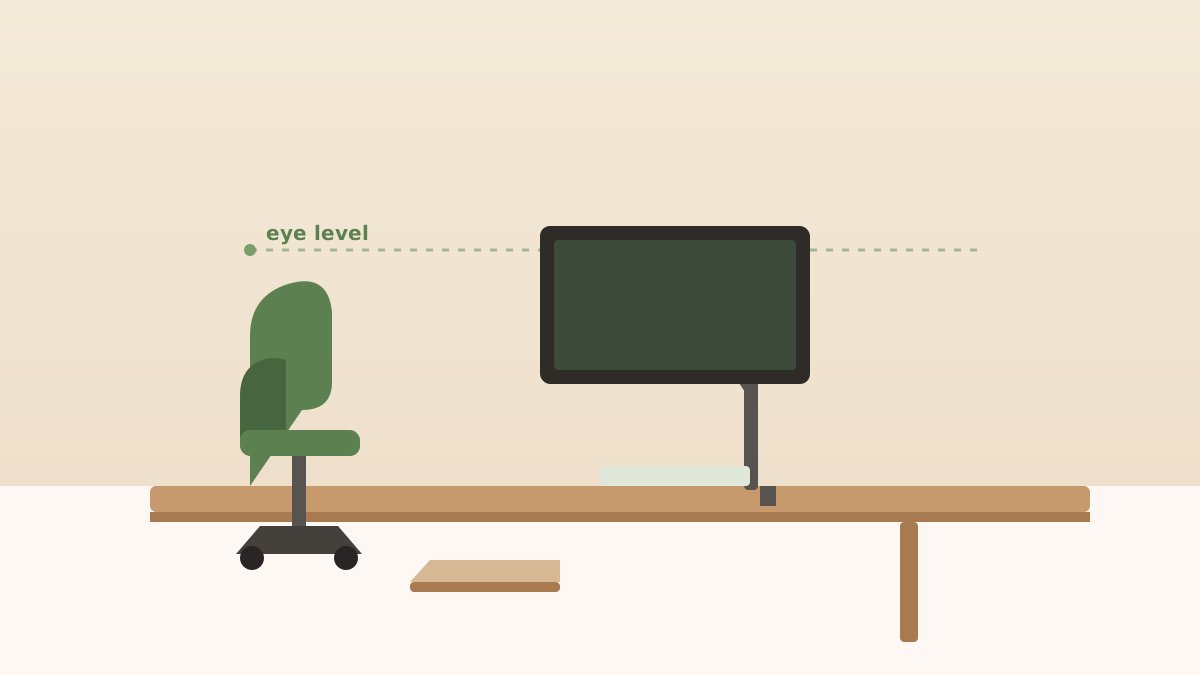
Most back and neck pain from desk work comes from setup problems, not the amount of hours worked. The fixes are more about positioning than products, though a few targeted buys do help significantly.
Start here: the free fixes
Before buying anything, check these. Most people are wrong on at least two of them.
Monitor height: the top of your monitor should be at or just below eye level. If you're looking down at your laptop screen or up at a tall monitor, that's the problem. A monitor riser or laptop stand fixes this for $20–$30.
Monitor distance: arm's length from your face, roughly 20–28 inches. Too close strains eyes; too far causes you to lean forward.
Chair height: feet flat on the floor, knees at roughly 90 degrees, thighs parallel to the floor or slightly angled down. Most people sit too low.
Keyboard position: elbows at 90 degrees, wrists straight, keyboard at the height of your relaxed elbows. If your wrists angle up or down while typing, you'll feel it over months.
Screen glare: position your monitor perpendicular to windows, not facing them. Glare causes squinting and eye fatigue that turns into headaches and neck tension.
Getting these four things right is worth more than any ergonomic chair upgrade.
The upgrades worth buying
Laptop stand + external keyboard: $30–$60 combined
If you work on a laptop, this is the single highest-impact upgrade available. A laptop stand raises the screen to eye level; an external keyboard lets your arms be in the correct position. You can't have both at once without these two pieces.
Adjustable laptop stands →Compact wireless keyboards →
Lumbar support cushion: $25–$50
If your chair doesn't have built-in lumbar support (most budget chairs don't), a lumbar support pillow that straps to the chair back fills the gap. Not as good as a proper ergonomic chair, but it's a $30 fix vs. a $400 fix.
Monitor riser: $20–$35
Covered above. Raises your monitor to correct height. Look for ones with storage underneath (doubles as drawer for keyboard when not in use).
Anti-fatigue mat (standing desk users only): $40–$80
If you have a standing desk and are actually standing, an anti-fatigue mat is not optional. Standing on hard floors for hours causes leg and lower back fatigue that offsets the benefits of standing. Topo-style mats with raised terrain encourage micro-movements; flat foam mats are better than nothing.
Anti-fatigue standing desk mats →
What's actually worth spending on
The most frequently overspent categories in ergonomics:
Wrist rests: mixed evidence they help and can actually encourage wrong wrist position if used while typing. Only useful for mouse-heavy work (design, editing), not typing.
$600+ chairs: the Aeron and similar chairs are genuinely better than budget chairs, but the improvement from $100 → $300 is bigger than $300 → $600. Fix your monitor height before upgrading the chair.
Standing desks: genuinely useful but only if you actually stand, which most people don't without intention. If you buy one, set a timer.
The 20-20-20 rule
Every 20 minutes, look at something 20 feet away for 20 seconds. Reduces eye fatigue significantly. Set a recurring timer; it takes two weeks to make it a habit.
No product required.
As an Amazon Associate I earn from qualifying purchases.
Found this helpful? Save it on Pinterest or share it with someone setting up their home office.
Browse more posts →